Looking for better performance often means getting new gear. But the real key is you. Your body’s position is the most important part of your setup.
Good posture starts with your chair. Make sure your feet are flat on the floor. Your thighs should be parallel to the floor.
Adjust the backrest to an angle between 100 and 110 degrees. This reduces spinal disc pressure and keeps your spine neutral.
Then, place your monitor right. It should be about an arm’s length away. The top of the screen should be at or slightly below your eye level. This avoids neck strain and keeps your head balanced.
The aim is to keep all your joints in a neutral position. This means relaxed muscles and even weight distribution. It prevents fatigue and allows for precision aiming and consistent performance.
Sustained awkward postures can lead to Repetitive Strain Injury (RSI). Millions of computer workers suffer from this pain. Proper ergonomics fights RSI and improves your focus and output.
Think of your posture and wrist health as the non-negotiable base. Every other upgrade, from mice to keyboards, builds on this foundation. Getting it right is the first step to lasting comfort and control.
Mouse Shapes & Grips (palm/claw/fingertip)
Ergonomic mice help avoid the strain of regular mice. The standard office mouse can hurt your wrist. It makes your wrist twist and your arm reach, leading to “mouse shoulder.”
This condition causes arm and shoulder pain. Studies show that using a mouse can lead to injuries in your upper limbs.
First, find out your mouse grip. How you hold your mouse affects which one is best for you. There are three main ways:
- Palm Grip: Your whole hand is on the mouse, fingers flat. This works well with larger, ergonomic mice.
- Claw Grip: Your palm arches, and your fingertips curl to click. You need a mouse with a hump for support.
- Fingertip Grip: Only your fingertips touch the mouse. This style is for quick, precise movements and works with smaller mice.
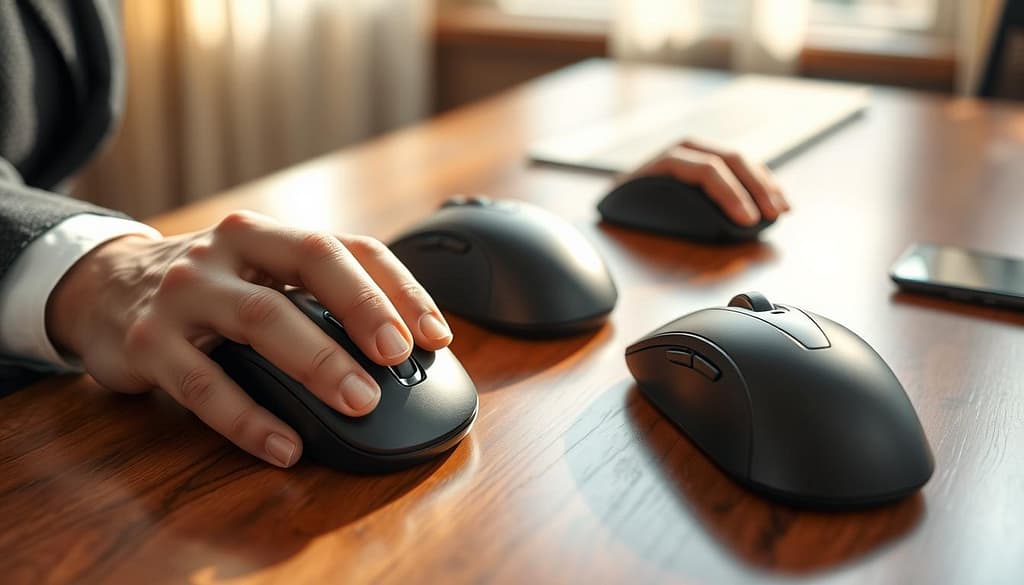
It’s important to match your grip with the right mouse shape for peripheral & ergonomics. The wrong match can make your hand uncomfortable. For more on gaming mouse ergonomics, check out our guide on gaming mouse ergonomics and grip styles.
Regular mice make your wrist twist because your forearm must bend. Ergonomic devices keep your hand in a neutral position. A vertical mouse, for example, keeps your thumb up and reduces forearm twisting.
This simple change can greatly reduce strain on your tendons and muscles.
If you have shoulder or arm pain, consider devices that don’t make you reach. Trackballs keep your hand in one place, using your thumb or fingers to move the cursor. Centered pointing devices, like the Contour Design RollerMouse, sit in front of your keyboard. They keep your hands centered and require no gripping.
These options are great for fighting “mouse shoulder” and reducing arm movement.
| Device Type | Primary Benefit | Best For Grip Style | Reduces This Strain |
|---|---|---|---|
| Traditional Mouse | Familiar, widely available | Adapts to all (with compromise) | Minimal |
| Vertical Mouse | Neutral handshake position | Palm, some Claw | Wrist pronation, forearm tension |
| Trackball | Eliminates arm movement | Fingertip, adapted Claw | Shoulder tension, arm fatigue |
| Centered Roller (e.g., RollerMouse) | Hands stay centered, no grip needed | Not grip-dependent | Arm abduction, grip fatigue |
Switching to an ergonomic mouse takes about a week to get used to. Your brain and muscles need time to adjust. Be patient during this time.
The benefits of a good ergonomic choice are worth it. It can prevent pain and keep you comfortable for a long time.
Choose based on your mouse grip and what hurts. If your wrist hurts, try a vertical mouse. If your shoulder gets tired, a trackball or centered device might help. The right choice spreads out the effort, preventing injury over time.
Remember, your mouse should support your natural posture. Investing in ergonomics now can save you from expensive injuries later. Start by figuring out your grip and looking for the right mouse shape.
Pad Size, Glide vs. Control
Your mouse pad is more than just a surface. It affects your cursor’s accuracy and your arm’s comfort. It’s a key part of your desk ergonomics. The right pad reduces strain and boosts precision.
Pad size affects your movement. A small pad means constant lifting and moving the mouse. This leads to fatigue.
For those with low DPI settings or multi-monitors, a large pad is a must. It lets you move your arm freely without hitting the edge. This keeps your mouse and keyboard in the best position.
The choice between glide and control is also important. Glide is about smooth movement, while control is about precision. Your choice depends on your tasks and personal preference.
Glide-focused pads are smooth and fast. They’re made of plastic, aluminum, or glass. These pads are great for fast tasks like gaming.
Control-focused pads are soft and textured. They offer more friction for precise movements. These pads are best for detailed work like graphic design.
| Feature | Glide Pads (Speed) | Control Pads (Precision) |
|---|---|---|
| Surface Type | Hard, Smooth | Soft, Textured |
| Common Material | Plastic, Aluminum, Hybrid | Cloth, Rubber, Woven Fabric |
| Best For | Fast Cursor Movement, Low-Friction Gaming | Pixel-Perfect Accuracy, Detailed Creative Work |
| Sensor Performance | Consistent on uniform hard surfaces | Excellent tracking on varied textures |
| User Feel | Effortless, quick, sometimes “icy” | Stable, predictable, tactile |
Choose a pad that matches your work. Graphic designers and editors need high-control surfaces. General office use often requires a balanced pad. Competitive gamers might prefer ultra-speed surfaces.
Getting the right pad size and surface is key. It supports ergonomics and makes your desk better. A good pad turns random arm movements into efficient actions.
Keyboard Angle & Foot Pedals
Wrist pain and lower back discomfort often come from bad keyboard tilt and not using foot pedals. Making these right is key to Peripheral & Ergonomics. It turns your workspace into a place of comfort and accuracy.
First, your keyboard. Many keyboards have small feet on the back. It might look better to raise them, but don’t. Ergonomic studies say it’s bad.
Using these feet bends your wrists up. This is called extension. It puts stress on your wrists and forearms, leading to pain and injuries like carpal tunnel syndrome.
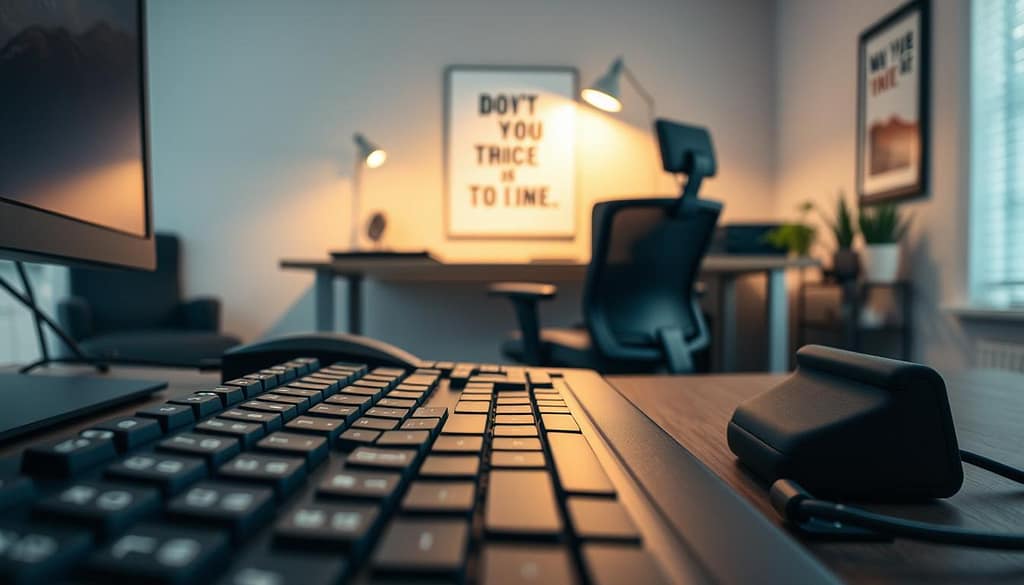
The goal is to keep your wrists straight. This means your hands should be in line with your forearms. A flat or slightly negative tilt is best. This means the front of your keyboard is a bit higher than the back.
This angle keeps your wrists relaxed. If you type on your lap, you naturally get a negative tilt. On a desk, you might need a keyboard tray to adjust for the best keyboard angle.
Another problem is angling your hands outward to reach keys. Split keyboards help by letting each hand align with your shoulder.
| Tilt Type | Wrist Position | Recommendation | Best For |
|---|---|---|---|
| Positive Tilt (Back feet raised) | Wrist Extension (Upward bend) | Avoid | Not recommended for prolonged use |
| Flat Tilt | Neutral | Good | Standard desks, most users |
| Negative Tilt (Front higher) | Neutral to Slight Flexion | Ideal | Preventing strain, users with wrist sensitivity |
| Split Keyboard | Neutral, Reduces Ulnar Deviation | Excellent for specific needs | Users with shoulder or wrist pain, touch typists |
Now, let’s talk about your feet. If your chair is right, your elbows should be at 90 degrees. Your feet should be flat on the floor. But, many people can’t do this, leading to thigh pressure and back discomfort.
This is where foot pedals become key. An adjustable footrest is a must-have. It gives your feet a stable place to rest, improving your comfort and posture.
It also cuts down on thigh pressure and boosts blood flow. Companies like call centers and accounting firms say footrests are essential for comfort and to avoid leg fatigue.
For more comfort, try a rocking footrest. It lets your feet and ankles move slightly. This keeps your muscles active and can reduce sitting discomfort.
Getting your Peripheral & Ergonomics right is key. It makes your workspace better for your body. For more tips, check out our guide on building a healthy gaming setup.
Warm‑Up & Injury Prevention Routine
Quality peripheral ergonomics need a daily routine. The right mouse and keyboard support your body. But, proactive habits protect it too.
Start each work session with a simple warm-up. Gently rotate your wrists in both directions. Open and close your hands into fists ten times.
Roll your shoulders forward and back. Slowly tilt your head from side to side. This gets your muscles ready for work.
The most critical rule is to move. Research shows short breaks every hour prevent more injuries than any gear. Stand up, stretch, or walk for just two to three minutes.
This movement is vital because even the best chair can’t protect you from a static posture.
During these breaks, focus on stretches for your forearms, neck, and back. If you stand, consider using an anti-fatigue mat. Brands like Topo or Ergodriven make mats that reduce stress on your feet and legs.
This routine is the final piece of your peripheral ergonomics setup. It turns your tools into a sustainable system for lasting precision and a pain-free workday.